THE SPREADSHEET WORKFLOW · FREE WHATSAPP SENDER
How to Send Personalized WhatsApp Messages from Excel or CSV
One spreadsheet. A message that fits each person. Learn to import contacts, replace variables, add shared files and check the results with SMDeck WhatsApp Sender.
Install the free extension, open the Sender workspace, import your Excel or CSV file, select its phone-number column, insert variables such as {{name}}, and preview each recipient. Add shared attachments if needed, then review the timing and start a small authorized test before your real campaign.
Before you start
You need Chrome or Edge on a computer, the official Chrome Web Store extension, and your own logged-in WhatsApp Web session. The store name is WARocket Sender:Rocket Sender - WAPI Sender; the popup brand is SMDeck WhatsApp Sender. We checked the public listing at version 1.0.44 on November 13, 2026. The workspace requires 1.0.42 or later.
All Sender features are free. There is no paid tier, subscription or paid feature unlock. Use a list of people who expect your message, and remove anyone who has asked you to stop. Free software does not guarantee account safety or delivery.
The downloads contain three fictional people and example numbers. Use them for importing and previewing only. For an actual send test, replace them with a number you control or have explicit permission to message.
SEE THE ACTUAL INTERFACE
A real UI walkthrough, one step at a time
These screenshots were captured from the live four-step workspace on November 13, 2026, using only the fictional sample. Select a chapter to inspect the controls. The demonstration ends at final review; it sends nothing.
Watch the earlier 56-second annotated video
Recorded November 6, 2026. This video combines actual interface screenshots with English annotations; it is not an uninterrupted screen recording. It shows the earlier single-page layout, shared image preview and draft saving. The current layout groups these controls into Recipients → Message & files → Send settings → Review & start. No messages were sent in the video.
Prepare your Excel or CSV spreadsheet
Put column names in the first row and one recipient on each following row. For Excel, put the contact table on the first worksheet: that is the sheet Sender reads. Avoid title rows, merged headers and blank or duplicate column names. Use short names such as phone, name, date and time.
| phone | name | date | time |
|---|---|---|---|
| 447700900123 | Maya Chen | November 12 | 10:00 AM |
| 447700900124 | Alex Rivera | November 12 | 11:30 AM |
| 447700900125 | Sam Taylor | November 13 | 2:00 PM |
- Numbers: include the country code. Store the column as Text in Excel so it keeps the complete number instead of scientific notation. Check the exported file, not just the cell display.
- Dates and times: use the wording you want recipients to see. The sample uses text, so November 12 and 10:00 AM stay readable. Replace these example dates before a real campaign.
- CSV encoding: export as UTF-8 to preserve names with accents or non-Latin characters. Open the file once to confirm the columns and characters.
- File: the import control accepts
.xlsx,.xlsand.csv, with a 5 MB limit. A sample CSV can be opened and saved as XLSX in Excel; keep the same first-row headers.
Download appointments.csv · Shared image sample · Shared PDF sample
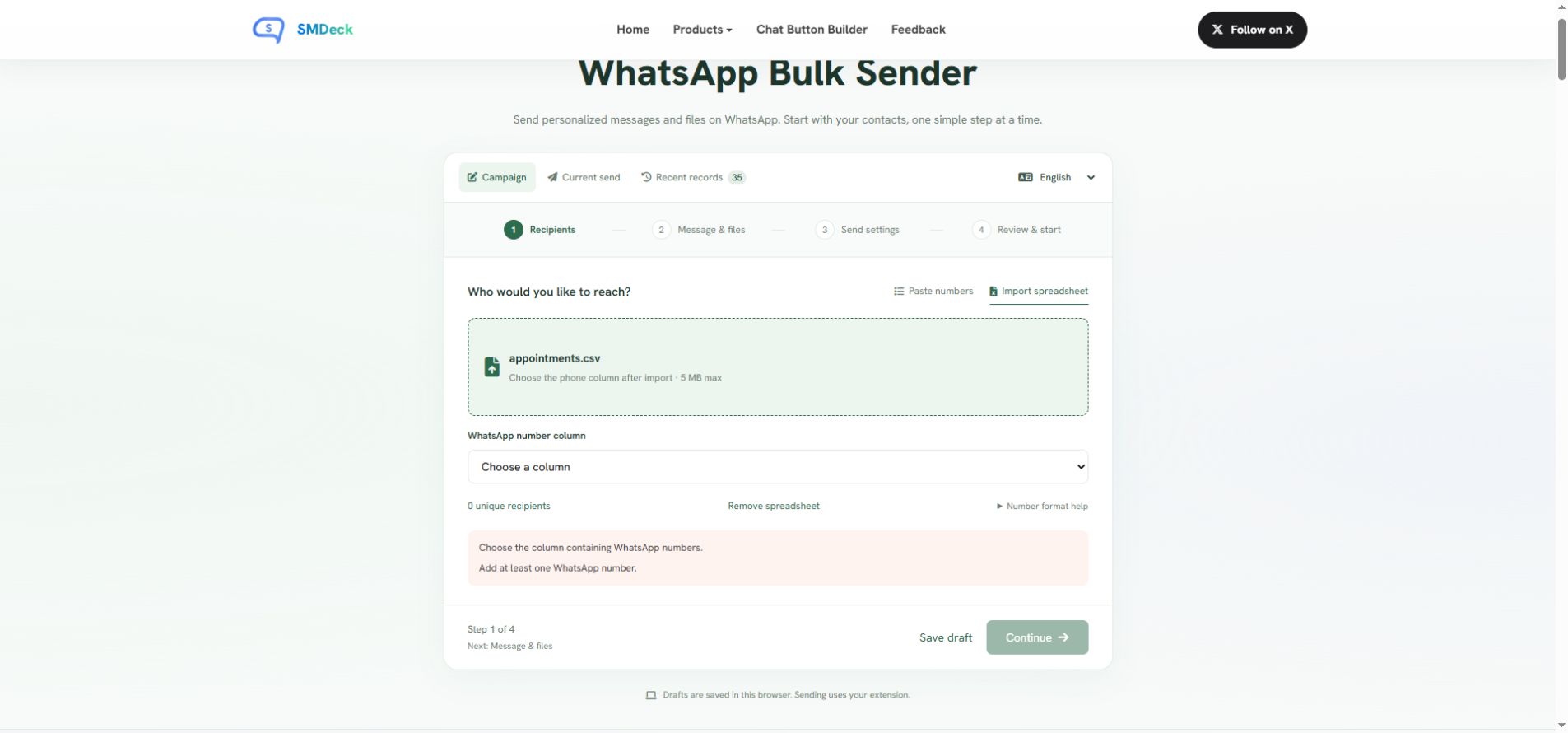
Import the file and map the phone-number column
- Open WhatsApp Sender. In Recipients, select Import spreadsheet and choose your file.
- In WhatsApp number column, select phone for this sample. A recognized WhatsApp Number header may be selected automatically; verify it rather than assuming the first column is correct.
- Check the unique-recipient count, invalid numbers, duplicates and conflicting rows. Our sample should show 3 unique recipients, 0 invalid, 0 duplicates, 0 conflicting rows.
- Correct conflicting entries in your source file and import again. A blank number row is skipped; a duplicate number is not an additional person. Phone-format validation does not establish that a WhatsApp account exists.
- Select Continue to open Message & files.
Mapping chooses the number column. The other non-empty headers become the field names available to personalize your text; you do not need to map name, date and time one by one.
Turn spreadsheet columns into message variables
In Message & files, write a template and use the Insert spreadsheet variable buttons, or type the exact header between double braces. For example, {{name}} uses the name cell from that recipient’s row. Header spelling and case matter.
Hi {{name}}, a friendly reminder from Orchid Studio: your appointment is on {{date}} at {{time}}.

Please see the shared visit guide below. Reply here if your plans change.
Maya’s preview begins “Hi Maya Chen” and includes “November 12 at 10:00 AM”. Alex’s preview uses “Hi Alex Rivera” and “11:30 AM”. The sample dates are fictional practice values.
Add your own columns such as order_id or appointment_type to reuse this pattern. Every value needed by a placeholder must be present and checked. Numbers pasted manually without a matching spreadsheet row cannot supply its name or appointment fields.
Add a shared image or PDF
Select Add attachment, choose an image or PDF, and wait until the file is marked Ready. Check its filename and preview. The current control allows up to 5 files, 20 MiB per file and 50 MiB combined. A file that is still loading or has an error is not ready to send.
The same selected files are reused for every recipient in the campaign. For an appointment reminder, that can be one shared visit guide. A PDF preview shows a document card; it does not mean Sender has checked every page of the document, so open and check the PDF yourself.
Names, times and order references can vary by spreadsheet row. The selected image or PDF stays the same. This workflow does not map a different PDF to each person. A column of file paths or URLs does not turn into per-recipient attachments. Do not add a private invoice as a shared file for a multi-person campaign.
Review the personalized preview for every recipient
Use Previous and Next in Personalized preview to inspect every row. Confirm the displayed number, name, date, time and shared attachment. Fix missing-variable warnings before continuing. A preview shows what Sender has prepared; it cannot prove the recipient’s identity or message delivery.
For this sample, go from Maya to Alex and confirm that 10:00 AM changes to 11:30 AM while the guide stays unchanged. Review Sam’s row too. If you need to pause preparation, use Save draft and wait for saving to finish before closing or refreshing. Keep your original spreadsheet and files as well.
Set timing, run a small test, then start your campaign
In Send settings, choose minimum and maximum intervals and either Send now or a future time. A random interval is a pacing control, not a guarantee against restrictions. Scheduled starts depend on the browser, extension and WhatsApp Web being available.
In Review & start, confirm the recipient count, text and file count, timing and account. You can give the campaign an optional name. Resolve the extension connection or update prompt before starting. If updating requires removing the extension, export the results you need first: removing it clears its saved local data.
For a real test, make a separate one-row campaign using a number you control or are explicitly authorized to message. Check the actual text and attachment in WhatsApp before using your real list. Never send to the fictional sample numbers. Choosing timing or reaching review does not itself start sending; the final Start sending action does.
While a campaign runs, keep the environment available and review Current send. Pause or stop if the data, account or results look wrong. Account or browser interruptions can pause a task; follow the actual message shown. An in-progress operation may already have been sent, so inspect the chat before repeating it.
Read the sending results correctly
| Result | Meaning and next action |
|---|---|
| Sent | A local sending operation completed successfully. It does not establish delivery or reading. Use WhatsApp itself to inspect those signals. |
| Failed | A sending attempt reported an error. Read the recorded reason and correct the number or environment. Review the chat before retrying if the operation could already have happened. |
| Unknown | Sender could not confirm the outcome, for example after an interruption or timeout. It may already have sent. Check WhatsApp before making a new attempt. |
| Pending | No settled result is available for that recipient yet. Check task status before starting a second campaign. |
Open Recent records to review the activity and export its per-recipient results. Keep that export when investigating a problem. Neither a successful import nor a saved draft is evidence that any message was sent.
Questions and troubleshooting
Can I send personalized WhatsApp messages from Excel for free?
Yes. SMDeck WhatsApp Sender is completely free, with no paid tier, subscription or paid feature unlocks. Import an XLSX, XLS or CSV file, map its number column, use column names as message variables, and review each preview. Sending requires the extension and your own logged-in WhatsApp Web session.
Can each spreadsheet row attach a different PDF?
This guide supports personalized message text with shared attachments. The files added to a campaign are reused for its recipients. A spreadsheet column containing a PDF path or URL does not automatically attach a different file for each person. Per-recipient PDF mapping is not supported by this workflow.
Why are my names missing or my variables not replaced?
Use a header row with distinct column names, map the phone column, and match placeholder spelling and case exactly: {{name}} refers to name. Check blank cells and each recipient preview. Manual numbers without a matching spreadsheet row cannot supply that row’s custom values.
Does Sent mean the recipient received or read my message?
No. Sent means a local sending operation completed successfully. It is not a delivery or read receipt. Check WhatsApp itself for delivery information, and review unknown results before considering a retry.
Is there an automatic unsubscribe or STOP list?
No. Sender has no built-in unsubscribe feature or automatic STOP suppression. Maintain your own list and remove anyone who asks you to stop before importing or sending again.
Can I use the sample phone numbers to test sending?
No. The sample uses fictional UK drama-range numbers solely for import and preview. Replace them with your own authorized test number for a real send, and use a separate one-row test campaign. No messages were sent while making this guide.
Can I close the browser after scheduling?
Do not rely on a closed or sleeping browser to execute a scheduled send. Keep the browser and WhatsApp Web available and logged in. A scheduled time is a requested start, not a guarantee of delivery.
If import fails, put the contact table on the first worksheet, use unique headers, reduce the file below 5 MB, or try UTF-8 CSV. If an attachment does not become Ready, check the extension connection and retry the file upload; a preview image alone is not confirmation that the file was stored successfully.
Keep the workflow small and checkable
Start with clean rows, check every preview, and test a message you are authorized to send. Maintain your own stop-request list: Sender has no automatic unsubscribe or STOP filtering.
Spreadsheets, campaigns and attachments are handled in the browser/extension for this workflow. Website analytics and extension usage/error reporting are separate data flows; error diagnostics in production 1.0.44 can include the full number associated with a failed attempt. See the Sender privacy policy before using customer data. Do not include private customer information in public feedback or recordings.
This guide is published by SMDeck, the tool’s developer. It describes the checked workflow, not independent delivery or account-safety testing. SMDeck is not affiliated with WhatsApp or Meta. Public store source · Report a problem